Docker Internals & Advanced
Deep dive into Layers, Optimization, Networks, and Volumes.
Layers in Docker
In Docker, layers are a fundamental part of the image architecture that allows Docker to be efficient, fast, and portable. A Docker image is essentially built up from a series of layers, each representing a set of differences from the previous layer.
How layers are made
1. Base Layer
The starting point of an image, typically an operating system (OS) like Ubuntu, Alpine, or any other base image specified in a Dockerfile.
2. Instruction Layers
Each command in a Dockerfile (RUN, COPY) creates a new layer by modifying the filesystem. These modifications stack on top of the base layer.
3. Reusable & Shareable
Layers are cached and reusable. Sharing common layers (like the base OS) reduces storage application and speeds up downloads significantly.
4. Immutable
Once created, layers cannot be changed. Updates create new layers on top. This immutability ensures reliability and consistency across environments.
Why do we need Layers? (Caching)
One of the most powerful features of Docker is Layer Caching. When you build an image, Docker steps through the instructions in your Dockerfile. For each instruction, it checks if it already has a layer for that exact instruction stored in its cache.
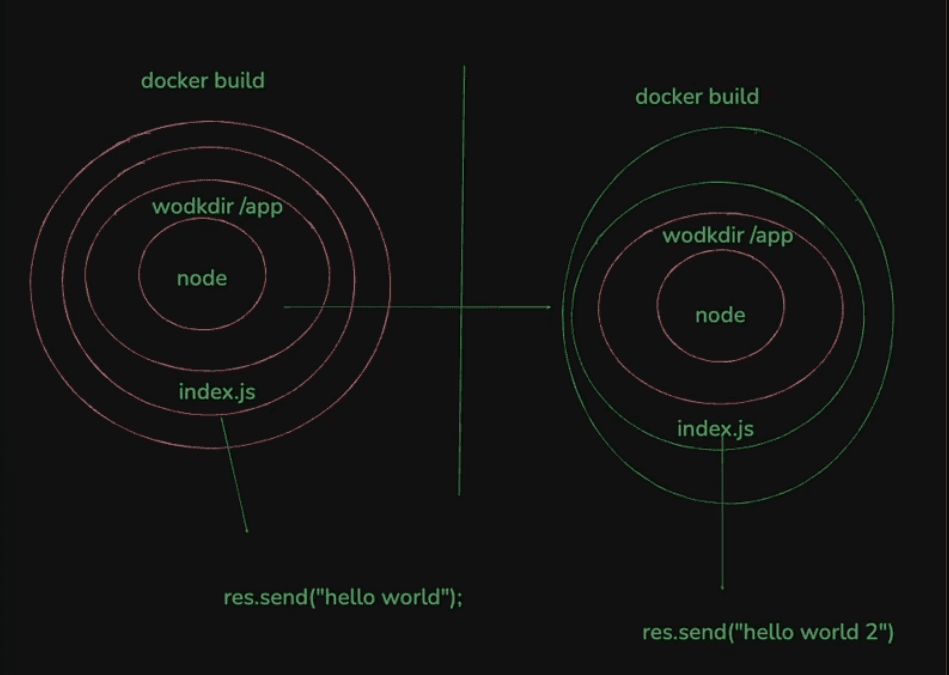
Visualizing Cache Hits: Inner layers (red) remain unchanged, so Docker reuses them. Only the outer layer (green) is rebuilt.
❌The "Lazy" Way
- •If you change just one line of code in your app...
- •Docker sees that the
COPY . .layer has changed. - •It MUST re-run
npm install(which is slow).
✅The "Professional" Way
- •You change your app code frequently, but dependencies rarely.
- •Docker sees
package.jsonhasn't changed, so it uses the Cached Layer for install. - •Result: Builds take seconds instead of minutes!
Volumes (Persisting Data)
By default, Docker containers are transitory. If you kill a container, any data created inside it (e.g., in a database) is lost forever. To fix this, we use Volumes.
How to persist data?
1. Create a Volume
docker volume create mongo_data2. Mount it to Container
docker run -d -p 27017:27017 -v mongo_data:/data/db mongoThis maps the mongo_data volume on your host to /data/db inside the container.
Pro Tip: Independent Volumes
Always creat an independent volume for each container. Do not share volumes between databases unless you know exactly what you are doing.
Networks
In Docker, a network is a powerful feature that allows containers to communicate with each other and with the outside world. By default, Docker containers are isolated. They can’t talk to each other unless you explicitly connect them.
Why do we need Networks? (The Localhost Problem)
To understand this, let's look at two scenarios of connecting your Node.js app to MongoDB.
It Works!
Since Node.js is running on your Host Machine, and you mapped Mongo's port to your Host's localhost (`-p 27017:27017`), your app can find it at `localhost:27017`.
It Fails!
Inside the Node container, `localhost` means the container itself. It looks for Mongo inside its own little box, doesn't find it, and crashes. It cannot see the Host's localhost.
The Solution: Docker Networks
How to set it up:
1Create the Network
docker network create my_app_network2Run MongoDB (Internal Only)
-p flag! It's safe inside the network.Option A: Quick Start (No Volume)
docker run -d --name my_mongodb --network my_app_network mongoOption B: With Volume (Recommended)
docker run -d --name my_mongodb --network my_app_network -v mongo_data:/data/db mongo3Run Node App (Public Access)
3000:3000 so Users can access the app.docker run -d --name node-app -p 3000:3000 --network my_app_network my-node-imageMagic DNS Resolution
Now, inside your Node app, you stop using `localhost`. Instead, you use the container name:
mongoose.connect("mongodb://my_mongodb:27017/db")Docker automatically resolves the hostname "mongodb" to the correct container IP address.